
You open the print dialog box, type in the number of copies you need, and then notice a checkbox labeled “Collate.” You check it, uncheck it, and wonder: what does collate mean when printing? If you are not completely sure, you are not alone. Millions of people print documents every day without understanding this simple setting, only to end up with stacks of pages that need to be manually sorted afterward. In this guide, you will learn exactly what collate means in printing, when to use it, how it works on different printers, and why businesses and commercial print shops rely on it to save time and improve efficiency.
What Does Collate Mean? The Simple Definition
In everyday language, to collate means to gather, sort, and arrange items into a logical, predetermined sequence. In the context of printing, collating means organizing printed pages so that each complete set of a document prints fully in order before the next set begins.
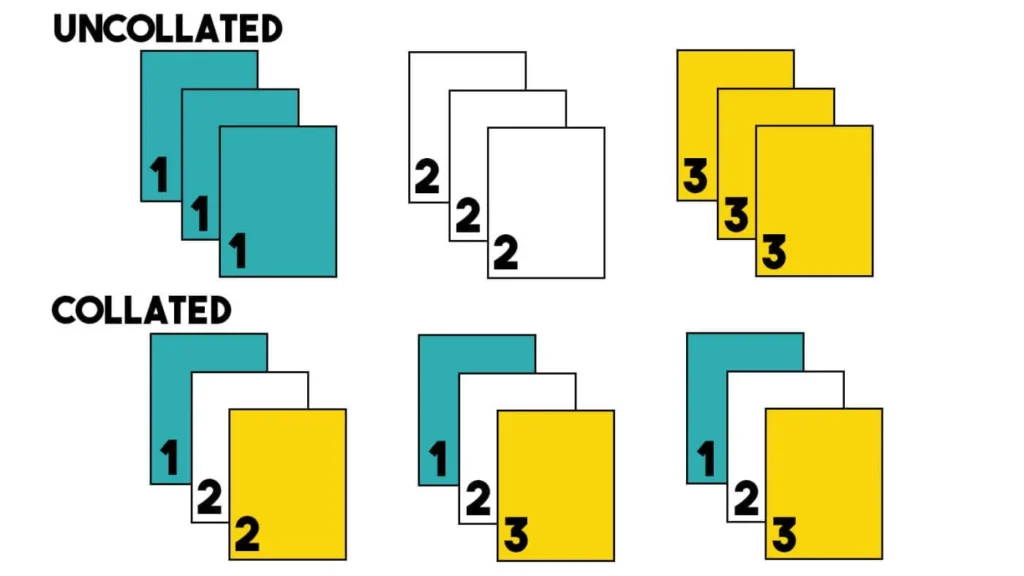
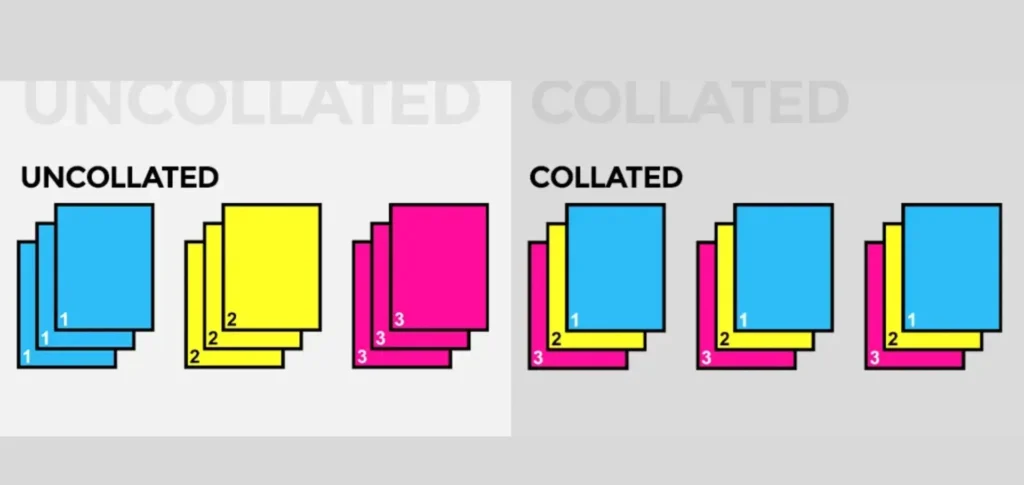
Think about it this way. Say you need 5 copies of a 4-page report. When collate is turned on, the printer produces: pages 1-2-3-4 (Copy 1), then pages 1-2-3-4 (Copy 2), and so on, until all five complete, ready-to-hand-out sets are stacked in the output tray. Each copy comes out as a finished unit.
When collate is turned OFF, the printer does it differently: it prints all five copies of page 1 first, then all five copies of page 2, and so on. You end up with five separate stacks, one stack per page, that someone has to sort by hand before any copy is usable.
That single distinction is the entire collate meaning in printer settings. It sounds small. In practice, it changes everything about how efficient your printing workflow is.
Collated vs Uncollated: A Side-by-Side Comparison
| Feature | Collated Printing | Uncollated Printing |
| Output order | Full sets: 1-2-3, 1-2-3 | Page stacks: 1-1-1, 2-2-2 |
| Ready to use? | Yes immediately | No requires manual sorting |
| Best for | Reports, booklets, manuals, presentations | Single-page stamps, batch processing one page at a time |
| Time required after printing | Almost none | Depends on page count and copies |
| Error risk | Low (automated sequence) | Higher (human sorting errors) |
| Print speed | Slightly slower on older printers | Marginally faster on some machines |
| Ink/toner usage | Same | Same |
Most modern laser and inkjet printers handle collation internally using their built-in memory, so there is no significant speed difference for everyday print jobs. The slight slowdown some people notice on older machines happens because the printer re-processes each page for every copy rather than grouping them.
What Does “Collate” Mean in the Printer Dialog Box?
When you click File > Print in any application, such as Microsoft Word, Adobe Acrobat, Google Docs, or any other program, a print dialog box appears. Inside, you will find a “Copies” field and, right next to or below it, a “Collate” option. It is sometimes shown as:
- A checkbox labeled “Collate”
- A toggle switch with two icons (stacked sets vs. individual page stacks)
- A dropdown that says “Collated” or “Uncollated”
If you are wondering what does collate mean when printing, the icon you will most commonly see shows two overlapping document symbols: one with pages in sequential order and one with pages stacked by number. When the collate option is selected or ticked, your printer assembles each complete copy before moving to the next. When it is deselected, it groups identical pages together.
Default setting: On most operating systems and printers, collate is turned on by default when you select more than one copy. This is the right default for the vast majority of print jobs.
How to Enable Collate on Your Printer
Now that you know what does collate mean printing, the next step is actually turning it on. The good news, it takes less than 30 seconds on any device. Whether you are using Windows, Mac, a standalone copier, or Adobe Acrobat, the steps below walk you through it clearly.
On Windows (Microsoft Print Dialog)
- Open your document and press Ctrl+P (or go to File > Print).
- In the Copies field, enter a number greater than 1.
- Look for the Collate checkbox near the Copies field; it should auto-appear when you increase copies.
- Make sure the checkbox is ticked if you want a collated output.
- Click Print.
On Mac (macOS Print Dialog)
- Press Command+P to open Print.
- Enter the number of copies.
- Look for the “Two-Sided” and “Collate” options. If not visible, click “Show Details.”
- Check the Collate box and confirm.
On a Standalone Copier/MFP (Multifunction Printer)
- Place your document in the document feeder.
- Press the Copy button and enter the number of copies.
- Navigate to “Settings” or “Options” on the touchscreen.
- Find the Collate setting and set it to ON or AUTO.
- Press Start.
In Adobe Acrobat (PDF Printing)
- Open the PDF and press Ctrl+P.
- Under “Copies,” increase the count.
- A “Collate” checkbox appears to ensure it is checked.
- Click Print.
Why Collate Printing Matters Real Benefits for Real Users
1. Time Savings (The Biggest Win)
Manual page sorting is one of those tasks that sounds quick until you are standing at a copier at 8:45 AM sorting through 200 pages before a 9 AM meeting. For organizations that regularly print multi-page materials, training packets, sales decks, and policy manuals, the time lost to manual sorting can easily run into hundreds of hours per year. Collate printing eliminates that entirely.
2. Accuracy and Order Integrity
When humans sort pages, mistakes happen, especially under time pressure or with large documents. A transposed page in a legal brief or a missing slide in a client presentation creates a poor impression that no amount of apologizing can fully repair. Collated printing removes human sorting from the equation, ensuring every copy is complete and in the correct sequence.
3. Immediate Usability
Each collated set comes out of the printer as a finished unit ready to staple, hole-punch, bind, or hand out. There is zero post-print assembly delay for the page content itself.
4. Professionalism in Commercial and Packaging Print Jobs
In commercial printing environments, collation is non-negotiable. When Next Gen Packaging produces product inserts, instruction booklets, or multi-panel brochures for a client, every sheet in every set must be in the right order before folding, binding, or packaging begins. A single uncollated batch can throw off an entire fulfillment run. That is why professional print operations build collation into every multi-page job as a standard step, not an afterthought.
When Should You NOT Collate?
Understanding what does collate mean when printing works both ways knowing when to switch it off matters just as much. Collation is not always the right choice for every job. While collate meaning printer settings usually refers to arranging complete document sets in order, there are times when uncollated printing actually saves more time and effort than collated output would. Here are the most common, legitimate cases where turning collate off makes better sense.
Batch stamping or signing. If you need to stamp “DRAFT” or sign the first page of each copy individually, having all page 1s together in one stack is far more efficient than flipping through complete sets.
Single-page documents. If you are printing 50 copies of a one-page flyer, collation has no effect, there is only one page per copy anyway.
Sorting by distribution group. If 10 people each need different pages of a packet, sorting uncollated stacks by page type first can be easier.
High-volume reprinting. If your printer jams mid-job, knowing exactly how many copies of each page are printed is easier with uncollated output.
For almost every other situation, reports, booklets, manuals, presentation decks, invoices, school materials, collated printing is the better option.
Types of Collation: Manual, Automatic, Online, and Offline
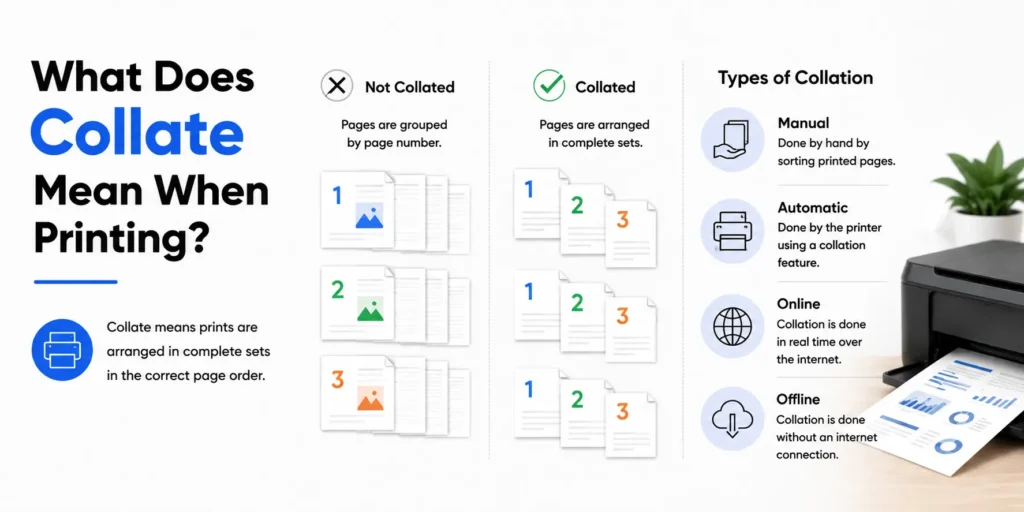
Manual Collation
Before modern printer firmware, someone physically picked up each page in order and assembled it into a set. In large print shops, this was a dedicated job role. Today it is rare, but it still happens when printers lack sufficient memory to handle complex collation jobs.
Automatic Collation
Modern printers and copiers do collation internally using their processing memory. The machine handles the page sequence without any human intervention. This is what happens when you tick the “Collate” checkbox in your print dialog.
Online Collation
Online collation happens while pages are being printed, the collating mechanism works in real-time as each sheet exits the press. This is common in high-speed digital presses used by commercial printers like Next Gen Packaging for long-run packaging insert jobs.
Offline Collation
Offline collation occurs after printing is complete, pages are gathered and assembled as a separate, post-press step, often using a dedicated collating machine. This approach suits jobs where different paper stocks or specialty pages (like dividers or cover sheets) need to be merged with standard sheets.
Collate Meaning in Different Contexts
The word collate means to arrange or organize items in a proper sequence, whether you are dealing with documents, data, reports, or printed pages. In printing, what does collate mean when printing refers to arranging multiple copies page by page into complete sets, such as 1-2-3, 1-2-3, instead of printing all same-numbered pages together.
Collate in Business Printing
Offices use collation daily for board reports, HR onboarding packets, meeting agendas, contracts, and training materials. Enabling collate in the print settings means every participant gets a complete, ready-to-read document no admin assistant required to sort pages.
Collate in Educational Settings
Teachers printing test booklets, lesson packets, or reading sets depend on collation to distribute materials efficiently. A 20-student classroom with a 6-page quiz needs 20 collated sets done in one click.
Collate in Commercial and Packaging Printing
This is where collation becomes truly critical. Next Gen Packaging handles large-volume print runs for product inserts, unboxing guides, and folded instruction sheets. In this environment, collation is not just about convenience. It is a quality control step that determines whether the final packaged product contains the right materials in the right order. A missed page in a pharmaceutical insert or a safety guide can have serious consequences.
Collate in Legal and Medical Fields
Law firms printing case filings, and hospitals printing patient records or discharge instructions require perfectly ordered documents every time. In these industries, a misplaced page is not just an inconvenience it can create compliance risks.
Troubleshooting Common Collate Printing Problems
Problem: Pages printed in the wrong order after selecting collate.
Solution: Check that the pages in your source document are correctly ordered before printing. Collation sequences what you give it. Also, it cannot fix a document where page 6 was saved before page 4.
Problem: The collate option is greyed out.
Solution: Collation only applies when printing more than one copy. Make sure your copy count is set to 2 or higher.
Problem: Print quality drops midway through a large collated job.
Solution: The printer’s fuser may be overheating. Print in smaller batches for example, 25 copies at a time instead of 100 and allow brief cool-down periods between runs.
Problem: Printer jams in the middle of a collated job.
Solution: Clear the jam, note how many complete sets have already printed, and restart the job from the next incomplete copy. Adjust the copy count accordingly to avoid duplicating completed sets.
Problem: Mixed paper stocks (e.g., cover sheets + body pages) do not collate correctly.
Solution: Print the specialty pages and body pages as separate print runs, then manually collate the specialty sheets into each complete set by hand.
Collated Printing at Scale: What Businesses Need to Know
For organizations printing thousands of pages per week, collation is a workflow cornerstone. Companies like Packaging Next Gen invest in high-capacity multifunction printers and digital presses specifically because of their advanced, high-speed auto-collation capabilities. When a single job requires 5,000 collated sets of a 12-page booklet, manual sorting is not even a consideration the equipment must handle it automatically and accurately.
Key equipment features to look for if collation matters to your business:
- High-capacity output trays with mailbox or booklet-maker finishers
- Internal processing memory of at least 1–2GB for complex jobs
- Built-in stitching/stapling for collated sets
- Network print management software with collation logging and error recovery
- Support for mixed-media collation (different paper weights and coatings in one job)
Everything You Need to Know About Collate Printing
Collate means organizing printed copies so each complete set of pages comes out together in the correct sequence. It is the difference between grabbing a finished document off the printer and standing there sorting a loose pile of pages for ten minutes. For anyone printing multi-page documents in any quantity from a teacher printing 30 test packets to a commercial printer producing thousands of packaging inserts, understanding and using the collate setting correctly is one of the simplest, highest-impact things you can do to improve print workflow efficiency.
Turn collate ON for multi-page documents with multiple copies. Turn it OFF only when you have a specific operational reason to process identical pages together. Check your print dialog before every job. And if you manage a business that relies heavily on printed materials, whether office documents, marketing collateral, or packaging inserts like those Next Gen Packaging produces for their clients, ensure your print equipment supports high-speed automatic collation so the setting works reliably at the volume you need.
Frequently Asked Questions
Q: What does collate mean when printing multiple copies?
A: Collating means the printer produces one full copy of your document, all pages in order, before starting the next copy. So 3 copies of a 5-page document print as: pages 1-5, then pages 1-5, then pages 1-5 again.
Q: What does it mean to collate in a printer?
A: In printer settings, collate tells the machine to keep each complete copy together in sequential page order, rather than grouping all copies of the same page in stacks.
Q: Should I print collated or uncollated?
A: Collated is the right choice for almost every multi-page document, such as reports, booklets, manuals, and presentations. Uncollated works better when you need to batch-process identical pages (e.g., stamping or signing just the first page of many copies).
Q: Does collating slow down printing?
A: On older printers with limited memory, collating can be marginally slower because the printer must process each page set individually. Modern printers handle this quickly and the speed difference is negligible for everyday jobs.
Q: Is collate on or off by default?
A: On most modern printers and operating systems, collate is ON by default when you select more than one copy. It is always worth double-checking your print dialog before hitting Print.
Q: What is the difference between collated and uncollated printing?
A: Collated output = complete sets (1-2-3, 1-2-3, 1-2-3). Uncollated output = page stacks (1-1-1, 2-2-2, 3-3-3). Collated is ready to use immediately; uncollated requires manual sorting.
Q: What does “collate” mean for booklets and brochures?
A: For booklets and brochures, collation ensures every copy contains all pages in the intended reading sequence before it goes to the binding or folding stage. Without collation, booklet assembly becomes a manual, error-prone task.
Q: Can all printers collate?
A: Most modern printers and copiers support automatic collation. Very basic or older models may lack the internal memory to do so and will print uncollated by default regardless of settings.
Q: What does online vs offline collation mean?
A: Online collation happens in real-time as pages come off the press. Offline collation is done as a separate step after printing, often using a dedicated collating machine or done by hand.
Q: When would a packaging company need to collate print materials?
A: Packaging companies like Next Gen Packaging collate product inserts, safety guides, assembly instructions, and unboxing materials so that every finished package contains a complete, correctly ordered documentation set.